
Ver 1.0 Date 9/9/2014
How to Configure Remote Control and Take Remote Session of a Device
Overview
Remote access of computer systems is a key feature that has been incorporated into SapphireIMS.
SapphireIMS supports two types of remote connections
1. Direct connection – UltraVNC server has to be installed on the remote machine to enable remote access
2. Repeater – This connection is applicable for SapphireIMS agent nodes. The repeater acts like a proxy, sitting in the middle between server and viewer. All data of the session is passed through the repeater.
Step 1: Direct Connection
Go to Settings Tab-> Advanced System Settings-> Global Settings. Update the value of ‘Enable or Disable VNC feature’ to 1

Go to Settings Tab-> IT Automation-> Remote Control

1. Enable or disable VNC option
2. Select Connection option
3. Type the VNC installed port on the server
4. Type the unique password that was defined in the package. See Note below
5. IP address of SapphireIMS system
6. Enter the port number as configured while installing the repeater in the section Installing Repeater for Remote Access
7. Select the type of viewer. SapphireIMS supports 2 types of viewers - Java Viewer and VNC Viewer
Note: ‘Java Viewer’ is an applet built in SapphireIMS wherein controller end requires JRE installation as a pre-requisite for viewing remote desktop screens.
8. The preferred encoding. "Hextile" is an encoding that was designed for fast networks, while "Tight" is better suited for low-bandwidth connections.
9. Use specified compression level for "Tight" and "Zlib" encodings. Level 1 uses minimum of CPU time on the server but achieves weak compression ratios. Level 9 offers best compression but may be slow in terms of CPU time consumption on the server side.
10. Cursor shape updates is a protocol extension used to handle remote cursor movements locally on the client side, saving bandwidth and eliminating delays in mouse pointer movement. Set this parameter to "Disable" if you always want to see real cursor position on the remote side. Setting this option to "Ignore" is similar to "Enable" but the remote cursor will not be visible at all.
11. It refers to the representation of an individual pixel. The most common formats are 24 and 16 bit “true-color" values, and 8-bit "color map" representations, where an arbitrary map converts the color number to RGB values.
12. If set to "Yes", then all keyboard and mouse events in the desktop window will be silently ignored and will not be passed to the remote side.
13. Server Settings - The pre-requisite for changing server settings is that the latest VNC version 1.1.9.6 is installed on remote machines and Ultra VNC server is running in remote machines.
14. Select this option if you want the input devices disabled on the remote target machine
15. Select this option if you want user confirmation with the message 'SapphireIMS Remote Session Request' to authorize the remote session
16. Enter the Time out in seconds till when the remote session is allowed
17. Click to save the remote control settings
Advanced Settings – VNC Viewer
When ‘VNC viewer’ is selected as remote viewing option, SapphireIMS depends on ‘vncviewer.exe’ shipped as part of UltraVNC installation to provide access to remote desktop screens.
Pre-requisite at controller end
· UltraVNC server and viewer to be installed
· Registration of VNC Viewer
Installation of UltraVNC
UltraVNC needs to be compulsorily installed on agent less machines to enable remote access. You can execute a script on the target machine as explained below
Go to 'Settings'-> ‘Software Management'-> ' Package and Policy Management'
Click 'Create Package' to create a new script package
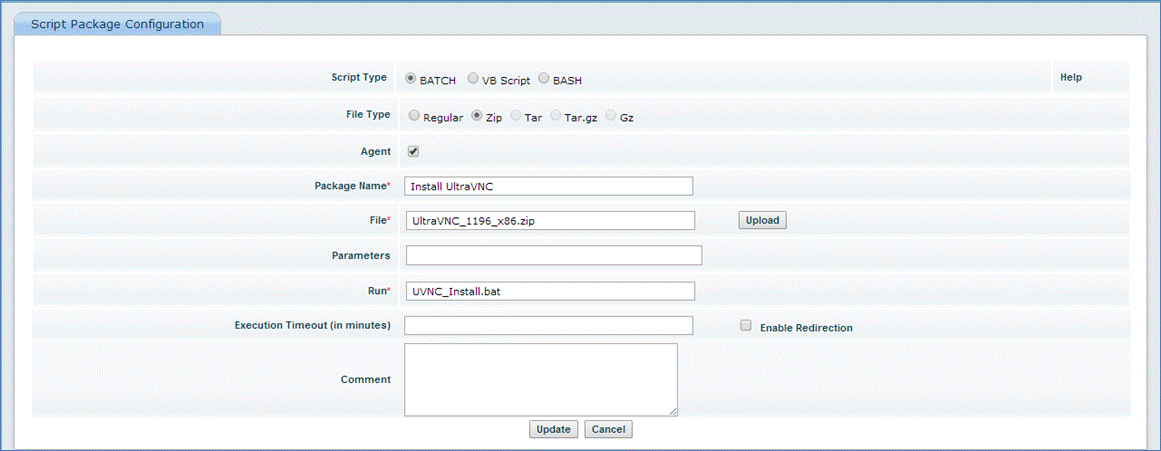
Note: Please refer to the guide ‘How to create a Custom Script Package and execute it on a device’ for detailed instructions on how to create and execute the script package
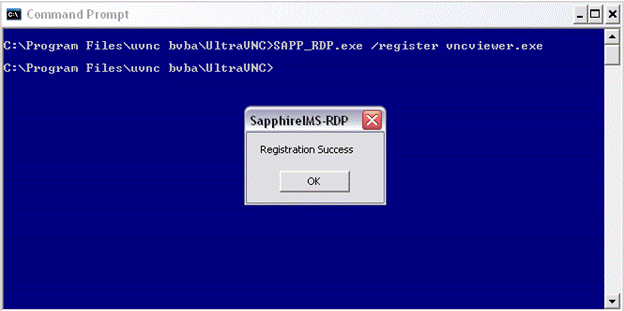
Register VNC Viewer at the controller end
· Copy the ‘SAPP_RDP.exe’ present at
“<ProgramFiles>\SapphireIMS\ConsoleManagement\ITAutomation\”
To “UltraVNC installation path <ProgramFiles>\uvnc bvba\UltraVNC” folder
· Register VNC viewer with ‘/register’ command line parameter to ‘SAPP_RDP.exe’
Pushing UltraVNC package from SapphireIMS
· Get the ‘VNC_1196_x86.zip’ package
· Create a new script package in SapphireIMS by using ‘VNC_1196_x86.zip’ . The ‘Run’ field in the configuration must be specified with ‘UVNC_Install.bat’
· Create a ‘Script Execution’ job by selecting the appropriate VNC script package created
Note: The default password is set in the package. For password change please contact SapphireIMS support team.
Step 2: Installing Repeater for remote access
When systems from outside LAN need to take remote access of systems within a LAN (like in a VPN environment), they contact the Repeater which facilitates the remote access connectivity. Please note that Repeater can be installed on any system within the LAN and is a mandatory feature for SapphireIMS agents. For further information on the use of repeaters, please access the following link:
http://www.uvnc.com/addons/repeater.html
Please follow the steps provided below to install and configure the repeater.
1. Double click executable file Repeater.exe
2. Right click the repeater icon in system tray and select settings.

3. Settings screen will be displayed. Enable 'accept' (enable mode 1) the default port is 5901.

4. Save the settings
Step3: Accessing VNC in SapphireIMS
Remote control of systems can be initiated from three
modules. From all three modules, click the remote control icon represented
by the eye symbol ' ' to enable
remote access of the system
' to enable
remote access of the system
The modes of access are as follows:
Go
to 'Inventory' menu -> 'Discovery'. In the RC column, click icon to access the required
systems.

1. Click on any host to access the complete inventory of the system.
2. On the top right hand corner in the ‘Actions’ drop down, you will notice the Remote Control icon. Click this icon to access the remote host.
3. Finally, the remote access can be initiated when a service desk ticket is edited. For this it is essential to have previously linked an asset with an inventory resource. Also the correct asset needs to be selected during ticket submission
Step 4: RDP Products support
SapphireIMS supports other third party remote control software such as 'Radmin' which can be integrated with SapphireIMS. The following section explains how ‘Radmin Viewer 3.4’ a third party program can be integrated with SapphireIMS to connect to a system remotely. This feature provides complete remote control access and allows performing all the remote management tasks.
1. Radmin Viewer (the client module) must be downloaded and installed on the computer which you want to use to access remote computer.
2. Radmin server must be running on the remote computer in order for you to control it.
3. Download ‘Radmin Viewer 3.4’ and install it. Radmin Viewer must be registered with SapphireIMS for the integration to proceed.
Register Radmin
Radmin once installed must be registered with SapphireIMS.
· To register Radmin type the command as shown below from the command prompt from ‘Radmin’ installed directory.
<InstalledPath>\SapphireIMS\ConsoleManagement\ITAutomation\SAPP_RDP.exe\register Radmin.exe >
Refer to the image shown below.
You will receive a registration success message as shown below. Click “OK’
Radmin is successfully registered with SapphireIMS. Now remote access needs to be enabled from within SapphireIMS.
1. To enable remote access for using Radmin go to “Settings”-> “Advanced System Settings”-> “Global Settings”
2. Select the setting key “Enable or Disable Remote Control Feature” and enter 2 as the “Setting Value” for enabling “Radmin” feature from SapphireIMS
Accessing Radmin in SapphireIMS
· Click the icon to initiate remote access from SapphireIMS
· Once Radmin has been enabled from SapphireIMS the remote access icon will be visible in ‘RC’ column of the ‘Inventory’ > ‘Discovery’ > ‘Discovered Nodes’ page. Refer to the image below.
· Click the remote access icon across the host name to display a remote login screen.
Troubleshooting Guidelines for Remote Control Errors
Remote control has two divisions
1. Forward connection
2. Reverse connection.
1. Forward connection:
Session is initiated from the server to client (nodes in both agent and agent less machines).
Error during the Forward connections:
1. Check that the VNC Server is running in the client machine.
Do the Telnet <Client Machine IP/Host> <port> if there is a problem with Telnet, then check the VNC server status.
2. If Java is blocking the machine, reduce the security for Java.
3. If the repeater is configured, then check that the repeater is running. Do the Telnet and check the repeater logs also for further clarifications.
To view the repeater logs right click on the repeater and click the “log”.

Error during the Reverse connections:
1. Agent has to initiate the connection for that, once the connection has been initiated in the repeater log, a message “Server Added” is displayed
2. Open the repeater log and check the flow of the connection
3. Once the client is triggered to connect to the agent machine a log entry “Client added successfully” will appear in the Repeater logs.
System Errors
Firewall may block communications.
Log File Analysis
The following are the log files that are related to this module
File Name |
Purpose |
Repeater logs |
Complete flow of the repeater can be traced here |
Environment Specific Debugging
· Firewall
· Check that the telnet is happening in the configured port