
Ver 1.0 Date 9/9/2014
How to Create a Custom Script Package and Execute it on a Device
Overview
Sapphire IMS allows you to execute scripts as part of IT Automation on a target machine. Apart from the default scripts provided, SapphireIMS allows you to execute custom scripts. An example of script execution which is used to install software on target machines is shown below.
Step 1 - Script Package Configuration
Go to Settings ->Software Management -> Package and Policy Management
Click 'Script Package' to view the list of predefined scripts
Click 'Create Package' to create a new script package
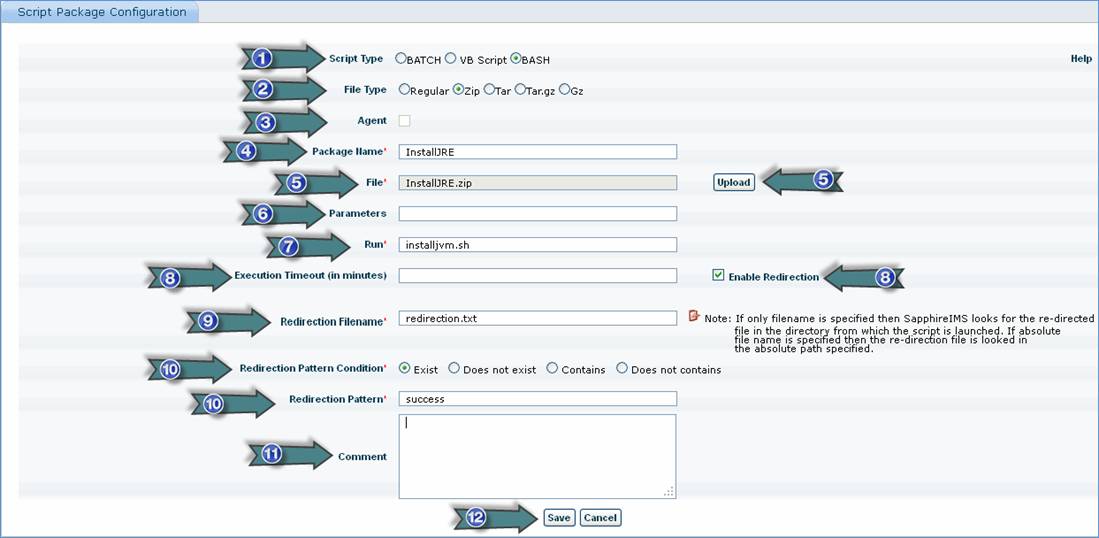
1. Select the script type. For Batch package installation, select Batch, for VB script package installation select VB Script and for BASH package installation select BASH
2. If you select the Zip/Tar/Tar.gz/Gz file type, then select the Zip or Tar or Tar.gz or Gz option and place all the related executable and non executable files in a single folder and zip/tar that folder in name of the executable file itself. While creating a Script Package, if you compress the package folder with Windows Native Compression then Agent cannot unzip. So , you have to use a compression utility like WinZIP/WinRAR/7Zip etc. but the output file name should be in .zip format
3. Select Agent option to execute the script file on the agent
4. Enter a meaningful package name for the executable file package
5. Specifies the location where the package resides .If the package is in remote location then select the correct credentials profile to connect to the remote host and then specify the path of the shared location. Attach the user profile for connecting the target host if required.
For Agent and BASH package installation, please upload the file to be executed
6. Specify the parameters if required for script execution
7. Enter the name of the executable to be executed. If the File Type is Zip or Tar or Tar.gz or Gz then, mention the name of executable present inside the Zip or Tar or Tar.gz or Gz which has to be executed
8. Enter the time limit for the file to be executed
9. Check the box to enable redirection to a target file
10. Enter the Redirection Filename. This is a file which contains the redirection from the script file
11. Select the Redirection Pattern condition from the options provided
Enter the Redirection Pattern string. This pattern has to match the Redirection Pattern Condition in the Redirection File. In the above example, the keyword 'success' has to be present in the redirected file 'redirection.txt'
12. Enter any comments related to the script file execution
Step 2 – Execute Custom Script/Exe
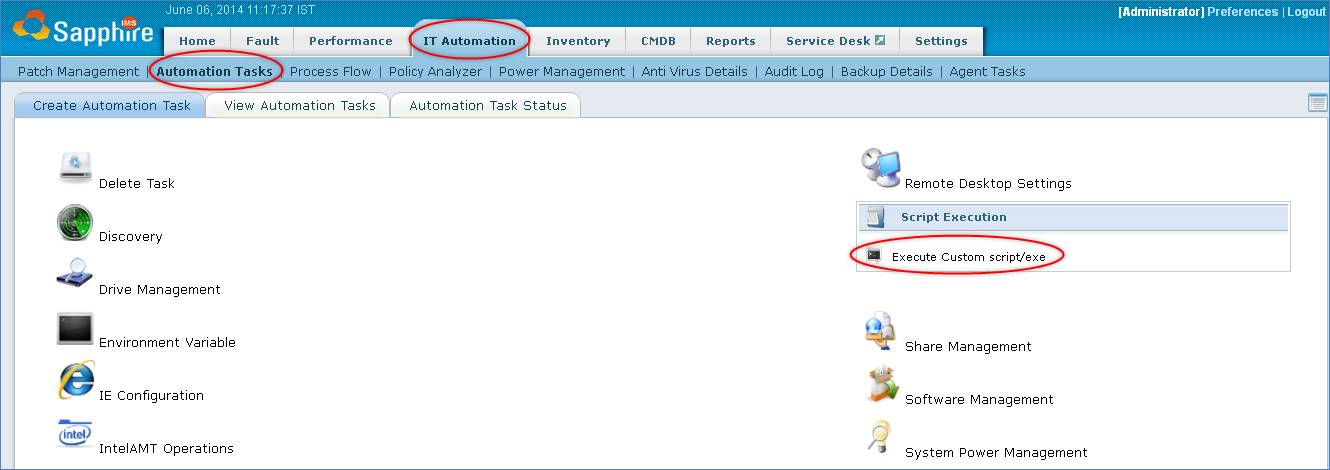
Go to IT Automation menu -> Automation Tasks -> Script Execution
Click Execute Custom script
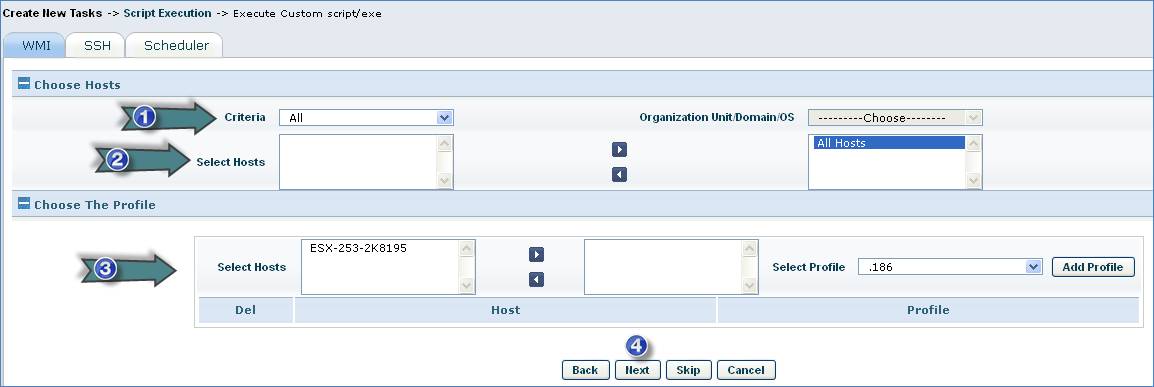
1. In the “Criteria” drop down, select the criteria for node selection
2. Select the hosts on which the script package has to be executed
3. As part of the host selection, the system will by default attempt the operation with the profile (data collection type and the credentials associated with it). However in specific situation you can override this by attaching a secondary profile applicable only for this operation.
4. Click “Next”
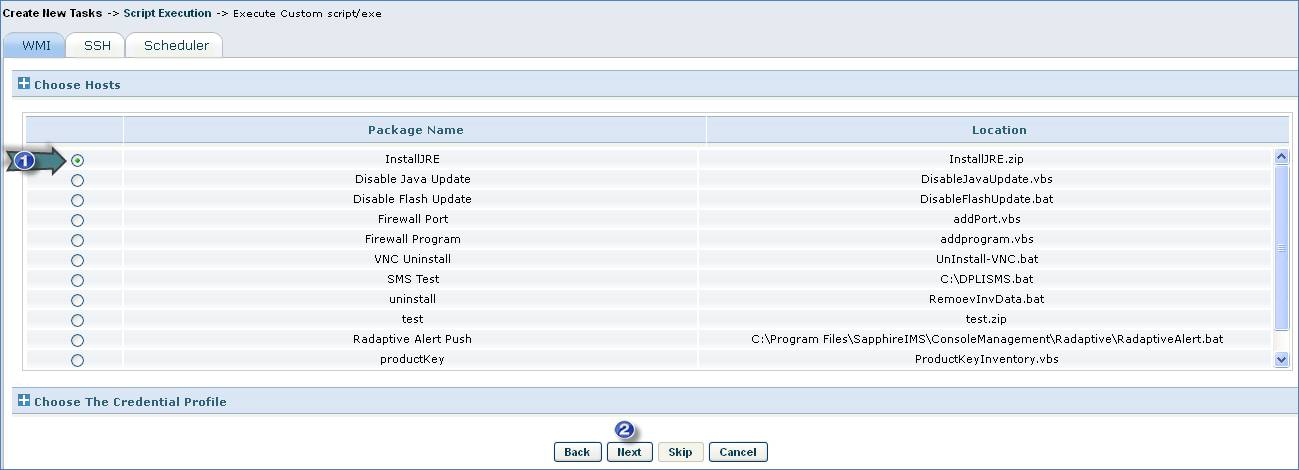
1. Select the script to be executed
2. Click “Next”
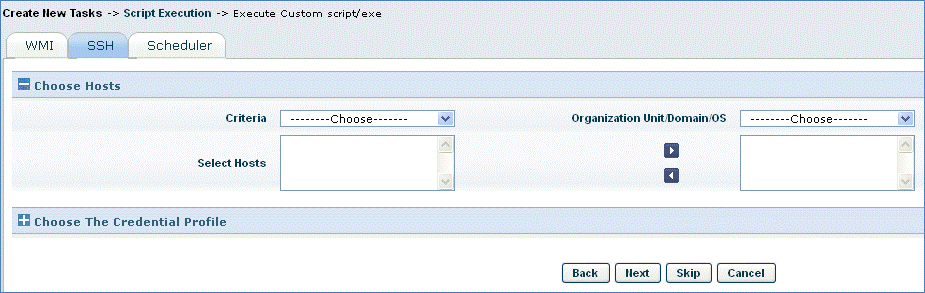
Click Skip if there are no scripts to be executed on SSH collected machines or select the hosts on which the script has to be executed and select the package to be installed
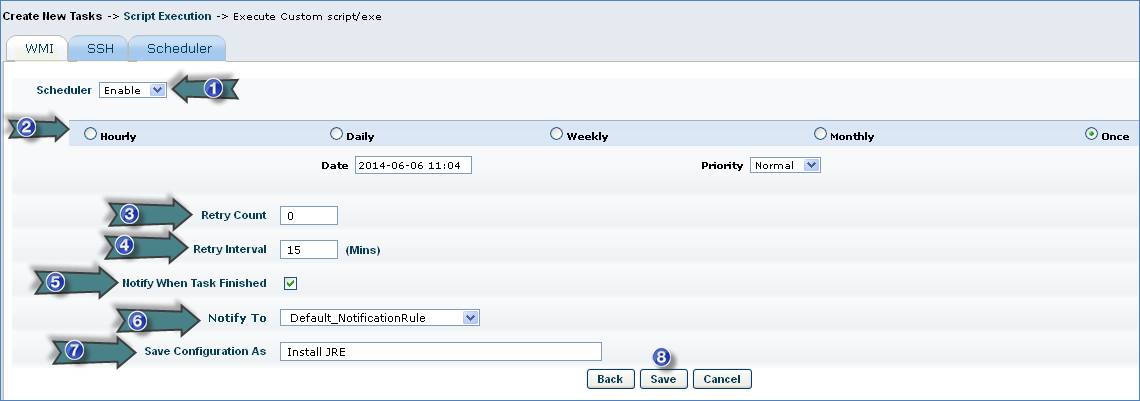
1. Select the Scheduler as “Enable”
2. Select the custom script execution schedule
3. Enter the number of times the script execution job will be posted
4. Enter the time interval after which the script execution job will be posted
5. Check this box to send notification
6. Select notification rule (role specific users defined in the rule to whom the notification is sent)
7. Enter script execution job profile name
8. Click ‘Save’
Step 3 – View Automation Task Status
Go to “IT Automation” -> Automation Tasks -> Automation Task Status tab to view the status of the scheduled script execution.
Note: For troubleshooting guidelines, please refer to the guidelines mentioned in the guide “How to create an Automation Task, Execute it on a device and Track the Automation Task Status”